Calibrate the Dahao A15 Pro Touchscreen

Overview
Use this procedure when taps on the Dahao A15 Pro do not respond or register in the wrong place. Start with the machine idle. Have a clean fingertip ready for the on-screen targets, and keep the machine powered on until calibration finishes.
Step-by-step guide
1. Turn the machine off and back on
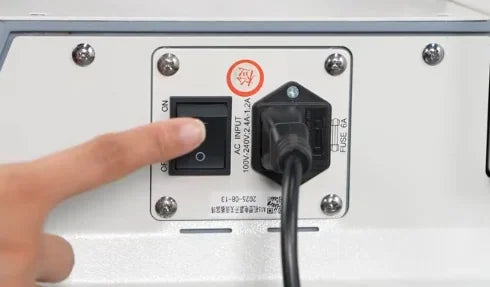
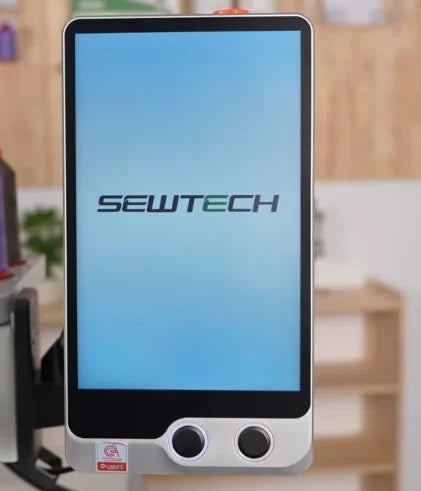
Watch at 00:26With the machine idle, press the OFF side of the black main power switch next to the power cord. Check that the controller screen goes dark. Wait a few seconds, switch the power back ON, and watch for the SEWTECH logo followed by the startup progress window.


2. Hold Start during initialization
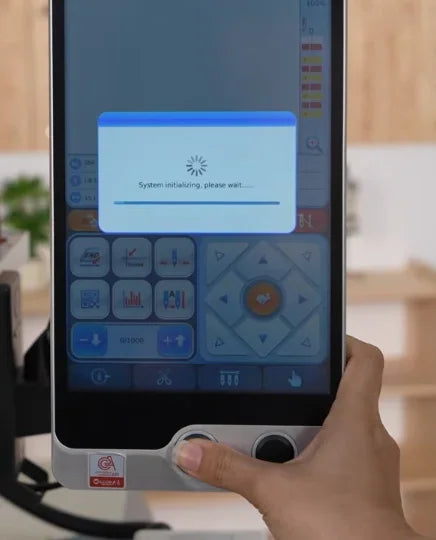
Watch at 00:45While the “System initializing” progress window is visible, press and hold the round Start button on the left beneath the touchscreen. Keep holding until the warning dialog asking about touch screen calibration appears, then release the button.
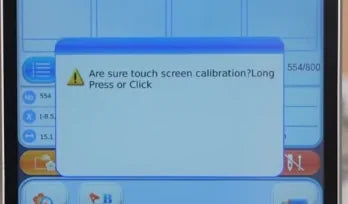
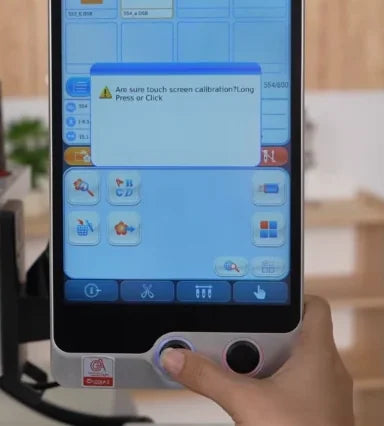
3. Press Start again to confirm
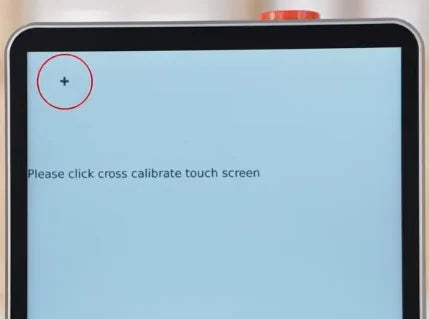
Watch at 00:58Briefly press the same left Start button again to confirm. The dialog closes and the screen switches to a pale calibration page with a small plus sign near the upper-left corner.
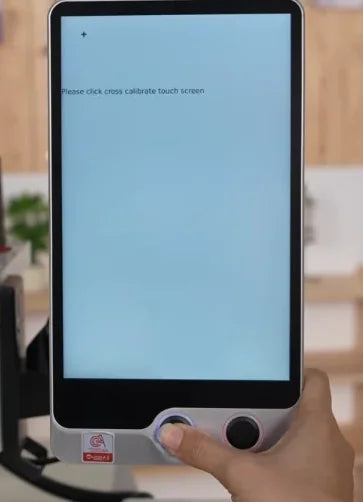
4. Tap the first crosshair
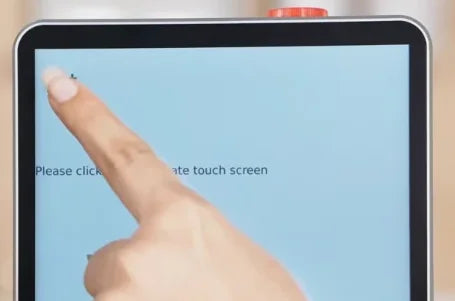
Watch at 01:02Use the tip of your finger to tap the point where the lines of the small “+” meet near the upper-left corner. Lift your finger and look for the crosshair to reappear in the next position.
5. Tap the lower targets
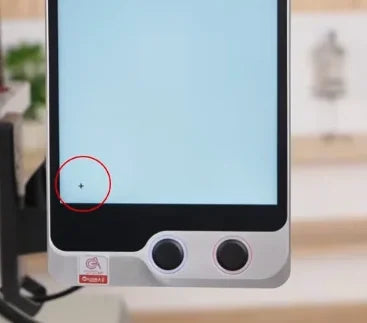
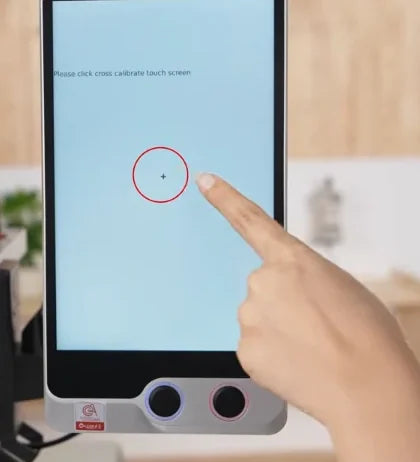
Watch at 01:10Follow the marker as it moves. In this demonstration it appears near the lower left and then the lower right. Tap the exact center of each crosshair after it appears.


6. Tap the upper-right and center targets
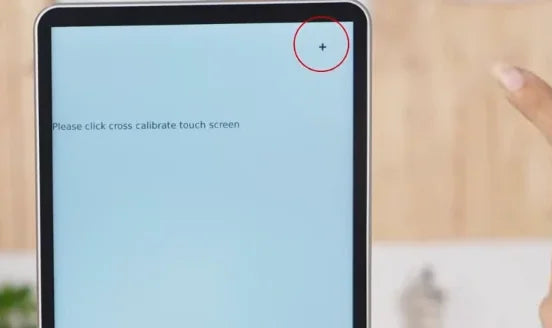
Watch at 01:15Tap the crosshair when it appears near the upper right. Then wait for the last marker near the center of the screen and tap the crossing of its lines in the same way.
7. Wait for the main screen to return
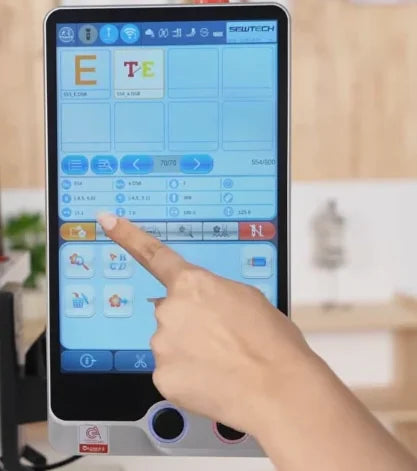
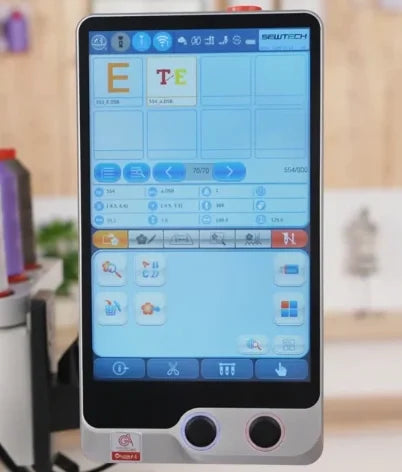
Watch at 01:18After the last tap, wait for the controller to leave the calibration screen on its own. The ordinary blue interface with design thumbnails and menu controls reappears.
8. Check that taps open the intended menus
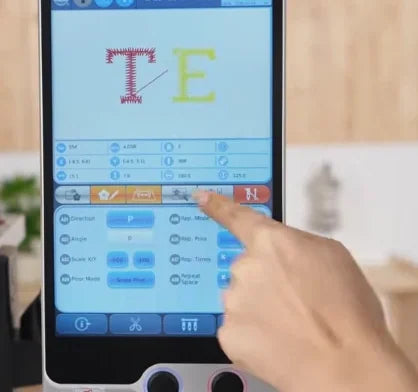
Watch at 01:26Tap a few on-screen menu controls while the machine is idle. Check that the panel for the control you actually touched opens each time. The video shows the interface changing to different design and color controls in response. If taps are still missed or offset, contact your SEWTECH sales representative or technical support.