Back Up ST-1501 Machine Parameters to USB

Overview
Use Param Export on the ST-1501 controller to back up its current machine parameters to a USB drive. Have a USB drive your controller can read ready, and start from the main screen. The export finishes when the controller reports success and shows the saved file path.
Step-by-step guide
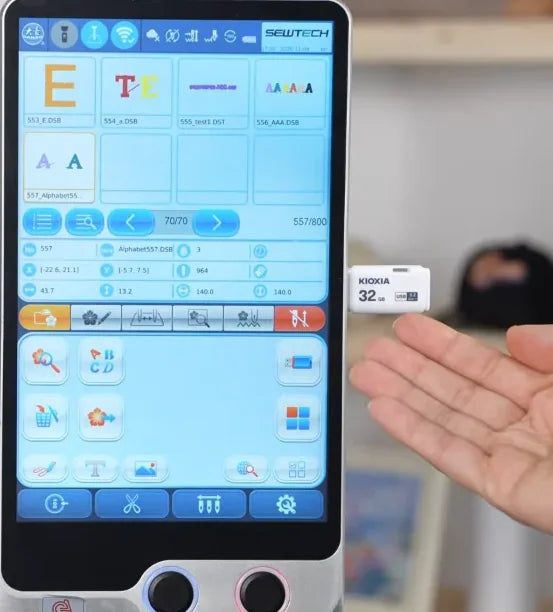
1. Insert the USB drive
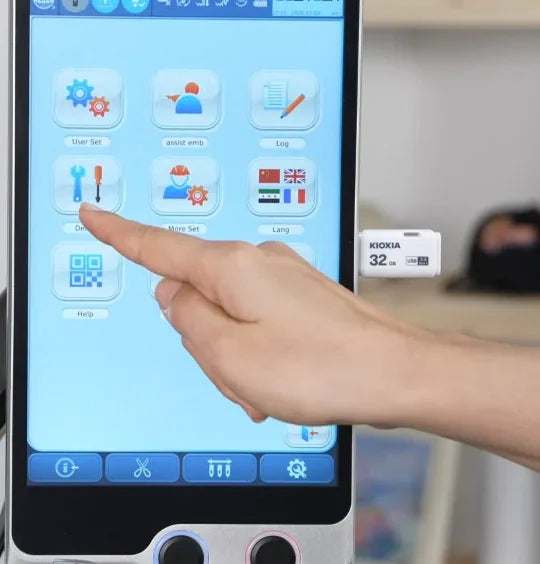
Watch at 00:10Plug the drive into the USB port on the right edge of the touchscreen controller. Leave it connected while you navigate the menus and export.
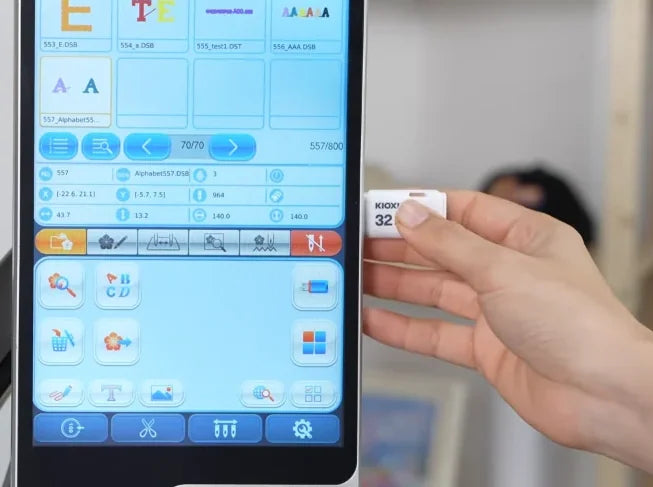
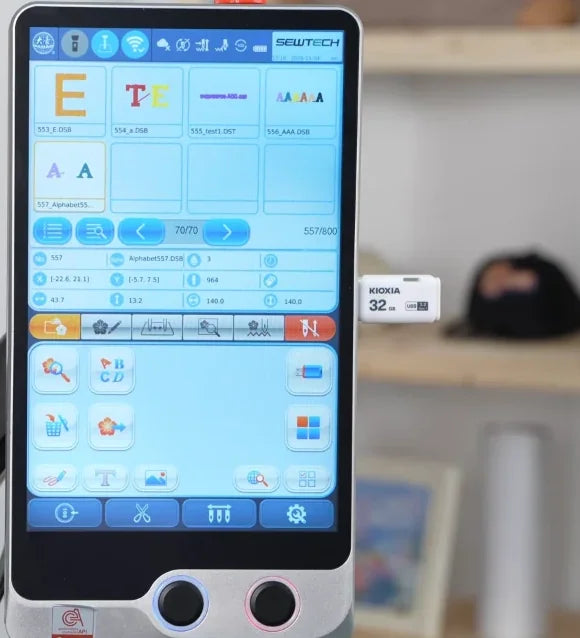
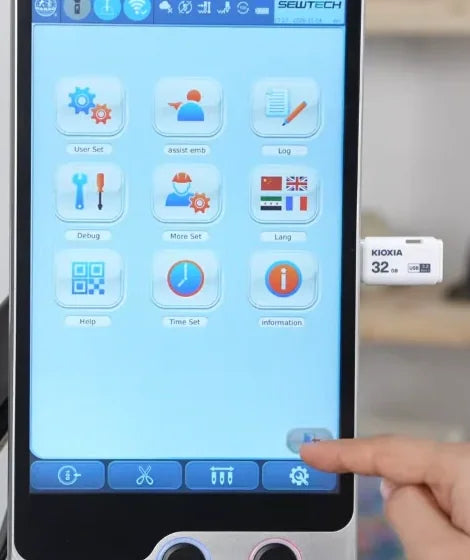
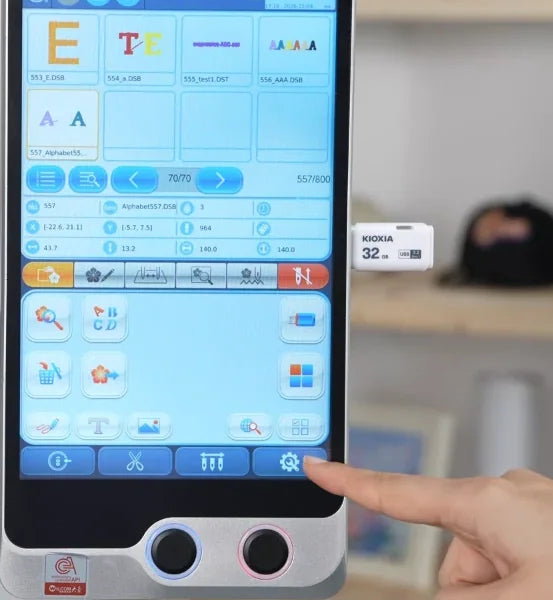
2. Open Other Functions
Watch at 00:18Tap the gear at the far right of the blue toolbar along the bottom of the main screen. The Other Functions menu opens as a grid of icons.
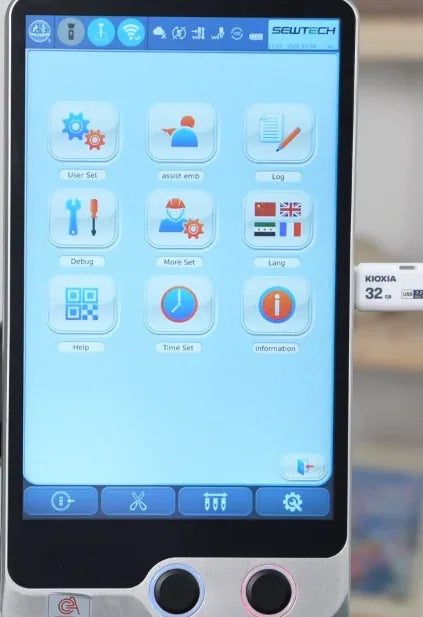
3. Open Debug
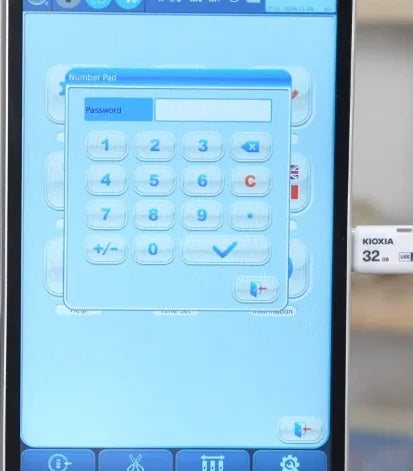
Watch at 00:23Tap Debug in the left column of the second row, under User Set. It has a wrench and screwdriver icon. A Number Pad with a Password field opens.
4. Confirm access on the number pad
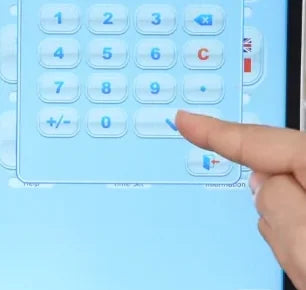
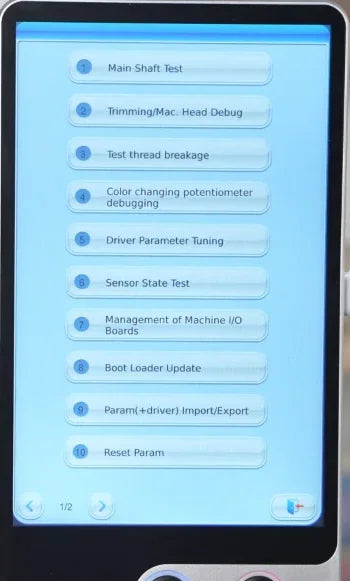
Watch at 00:26Enter the Debug password for your controller, then tap the blue check mark below the number keys. The video shows the code used on this controller. If your machine uses a different code, use the one supplied for your controller. On the demo unit, confirming opens page 1/2 of the Debug menu.
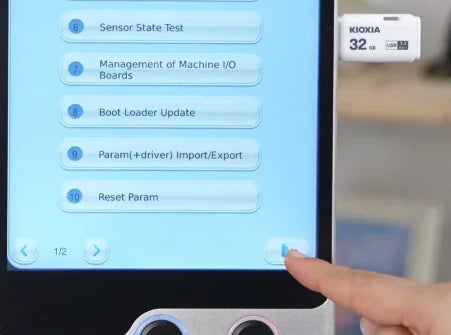
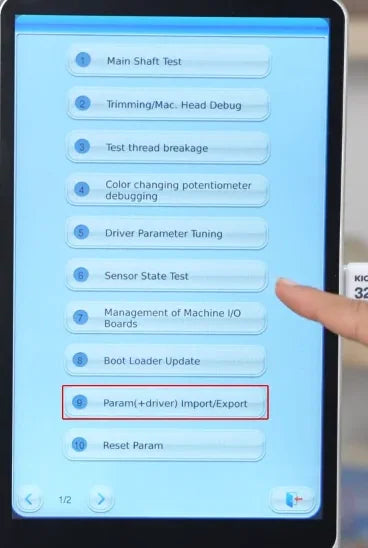
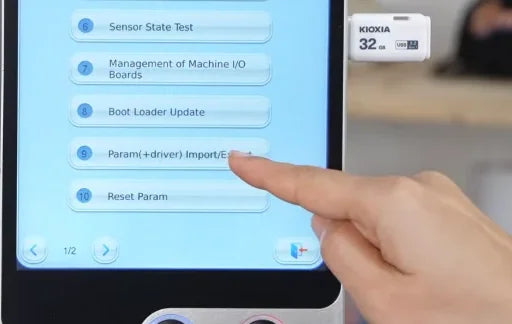
5. Open Param(+driver) Import/Export
Watch at 00:33On the first Debug page, tap item 9, Param(+driver) Import/Export. It is the second-to-last row, just above Reset Param.
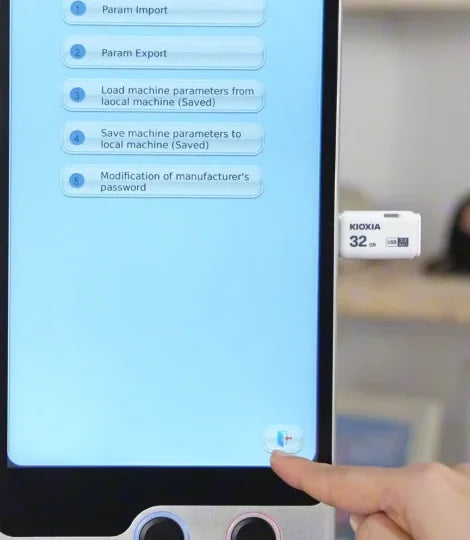
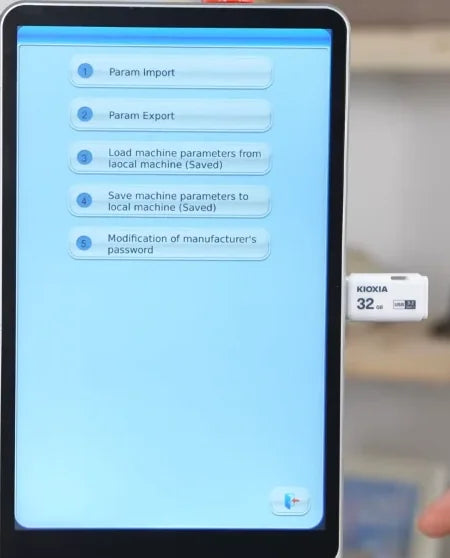
6. Choose Param Export
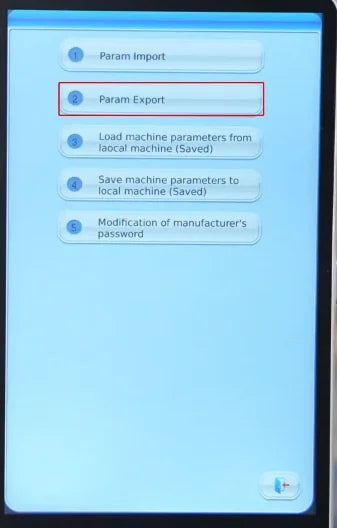
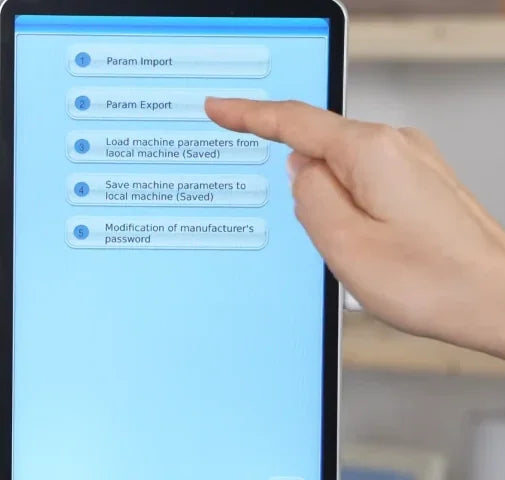
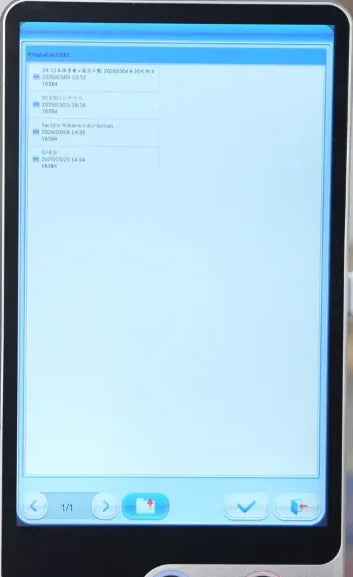
Watch at 00:38Tap item 2, Param Export, immediately below Param Import. The controller opens the USB drive file window.
7. Confirm the USB destination
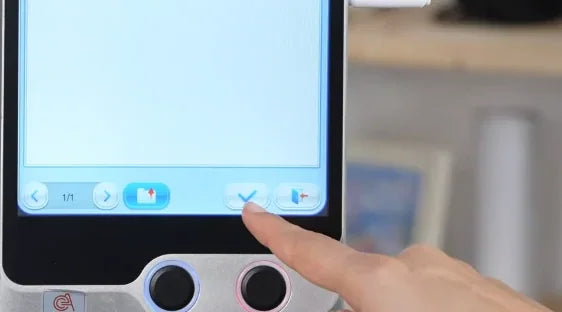
Watch at 00:42The video uses the folder already open in the USB window. Tap the blue check mark near the bottom-right corner, immediately to the left of the exit icon. That check mark starts the export to USB.
8. Check the success message and file path
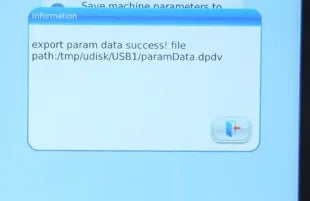
Watch at 00:45Keep the drive connected until the Information dialog says “export param data success!” Check the path shown beneath the message. In the demo, the file is paramData.dpdv and the controller shows it under USB1. Use the path on your own controller to locate your backup.
9. Close the confirmation dialog
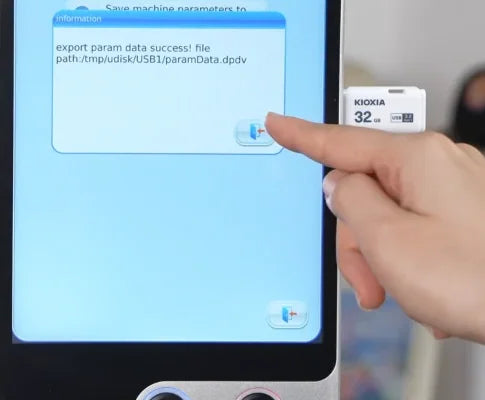
Watch at 00:53Tap the door-and-arrow icon inside the lower-right corner of the Information dialog. The dialog closes and the parameter submenu is visible again.
10. Return to the main screen
Watch at 00:59Tap the lower-right exit icon on the parameter submenu, again on the numbered Debug menu, and once more on the Other Functions grid. When the main screen with design thumbnails returns, you can remove the USB drive and keep the exported file with your backups.