SEWTECHSupport Center 简体中文

Match Screen Colors to Thread on the ST-1201 and SC-1501

Applies to ST-1201 / SC-1501 Demonstrated on ST-1201

Watch on YouTube ↗

Overview

With the machine stopped, identify which installed spool feeds each needle you want to update. On Page 3, match the numbered needle swatches to those spools. This walkthrough uses the ST-1201 touchscreen. In the video, needle 1 carries brown thread and needle 2 carries blue thread. Use the colors actually loaded on your machine.

Step-by-step guide

1. Open Page 3 and find the needle swatches

Watch at 00:13

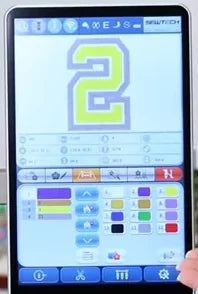
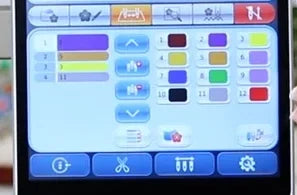
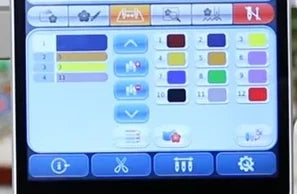
On the touchscreen, tap the third tab from the left on the strip between the design area and the controls. The tab turns orange. On the ST-1201 shown, the lower-right panel on Page 3 displays 12 numbered swatches, one for each needle. Read the needle swatches on the right side of this panel. The colored list on the left shows the design’s stitch order.
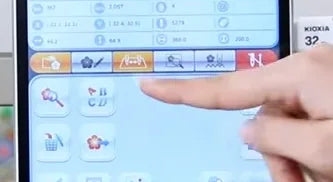
Tap the third tab in the middle strip. It turns orange as Page 3 opens.
Below the design preview, the numbered needle swatches are grouped on the right.

2. Compare needle 1 with its spool

Watch at 00:24

Find swatch 1 at the top left of the needle group. In the demo it is white on the screen, while the spool feeding needle 1 is brown. Use the needle number to identify the spool before you choose a replacement color.
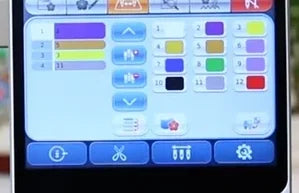
In the right-hand needle group, swatch 1 is white.
The presenter indicates the brown spool feeding needle 1 in this setup.

3. Open the color palette

Watch at 00:34

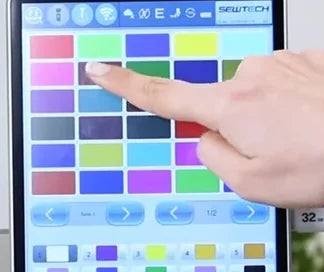
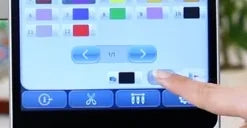
Tap the color-change button at the bottom right of the Page 3 panel, just above the blue toolbar. The large color palette opens at the top of the screen. The smaller numbered swatches below it select which needle color to edit.
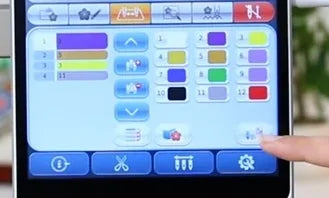
The fingertip points to the color-change button above the blue toolbar.
The larger swatches above are the available colors. The numbered swatches below are the needle colors.

4. Select needle 1 and choose brown

Watch at 00:49

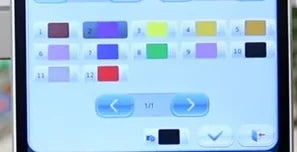
Tap the small swatch numbered 1 below the palette. If you need more shades, tap the right arrow in the left-hand pair directly below the large swatches, as shown. Tap the brown shade that matches the spool. Swatch 1 turns brown. In the demo the selection moves to swatch 2 after the tap, so verify the color on swatch 1 before confirming.
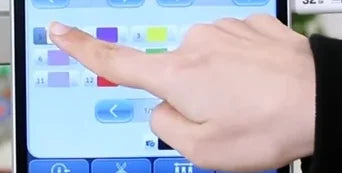
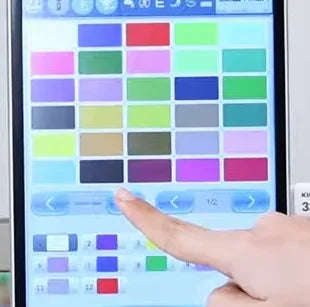
Tap the small white swatch in the first numbered position to select needle 1.
The right arrow in the left-hand arrow pair brings up another set of large swatches.
The presenter taps the brown swatch in the second row of the new set.
Swatch 1 is now brown, and the selection outline has advanced to swatch 2.

5. Confirm and recheck needle 1

Watch at 00:57

Tap the check mark near the bottom of the palette, above the blue toolbar. The palette closes and Page 3 returns. Check that swatch 1 in the right-hand group is now brown and matches the thread feeding needle 1.
Tap the check mark to confirm the palette change.
Page 3 returns. Swatch 1 stays brown in the top row of the needle group.

6. Compare needle 2 with its spool

Watch at 01:10

Check the next mismatched needle. In the demo, swatch 2 is the purple swatch next to swatch 1 on Page 3. The spool feeding needle 2 is blue.
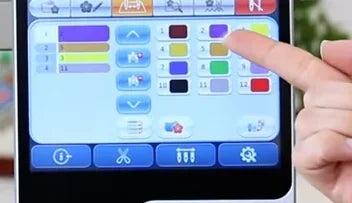
Page 3 still shows purple for needle 2, beside the corrected brown swatch 1.
The blue spool beside the brown spool feeds needle 2 in this demonstration.

7. Reopen the palette and select needle 2

Watch at 01:22

Tap the same color-change button again. Look below the large palette and tap the second small swatch in the top row, labeled 2. Check that the selection is on swatch 2 before choosing a color.
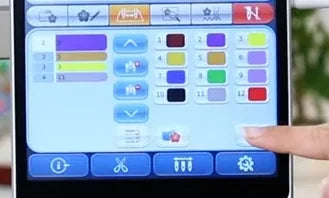
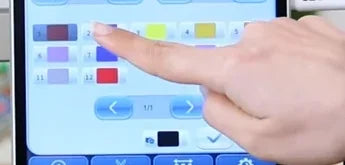
Reopen the palette with the same bottom-right color-change button.
Tap swatch 2 below the palette, beside the brown swatch 1.
The selection outline is now around swatch 2, ready for the new shade.

8. Choose blue for needle 2

Watch at 01:36

Choose the blue shade that matches the installed thread. In the demo this is the dark blue swatch in the upper grid. Check that swatch 2 changes to blue. The selection outline moves on to swatch 3 in the video.
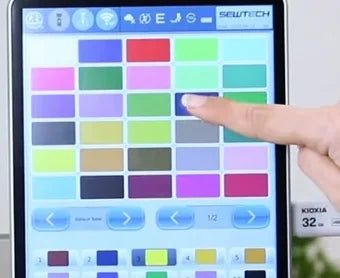
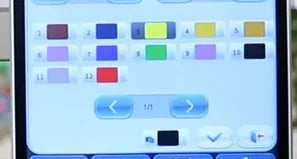
Tap the dark blue swatch in the upper grid.
Swatch 2 is blue even though the selection outline is now on swatch 3.

9. Confirm and compare both saved colors

Watch at 01:40

Tap the check mark again. When Page 3 comes back, compare the two numbered swatches with the spools that feed those needles. In the demo the saved swatches show brown for 1 and blue for 2. Use the same sequence for any other swatch that differs from the actual thread.
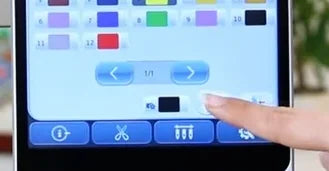
Tap the check mark to save needle 2’s new color and return to Page 3.
On Page 3, the first two swatches in the needle group now show brown and blue.